 Homeware Docs
Connect Homeware with Google
Once you have installed Homeware in your server, you must tell Google where your server is. Follow this instrucctions:
This is important.
- Follow this steps one by one and in order.
- Be patient
- Use the same Google account in all steps
Actions on Google Project
Go to Actions on Google console.
- Select
New project. - Write a name for the project.
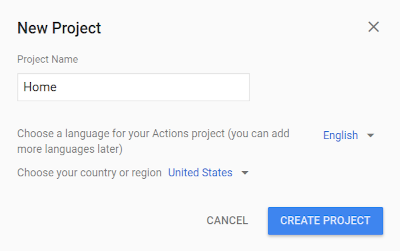
- Select
Smart Homeand then clickStart Building.
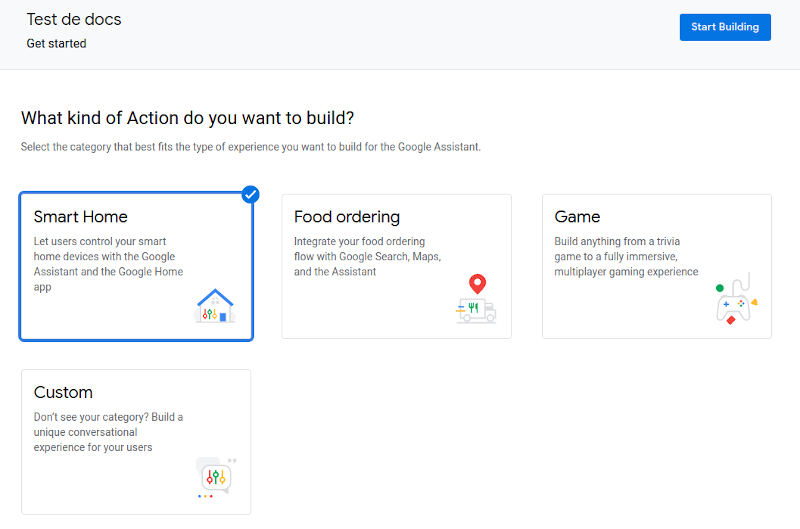
- Go to
Developfrom the top menu, selectInvocationin the left side menu, writeHomeas Display Name and clickSave.
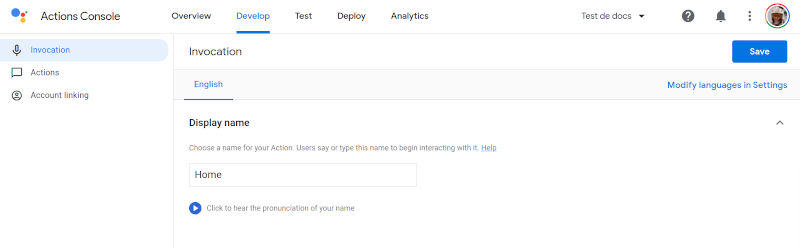
- Select
Actionsin the left side menu, add the Fulfillment URL using your domain and clickSave
- Fulfillment URL:
https://<your.domain.com>/smarthome/
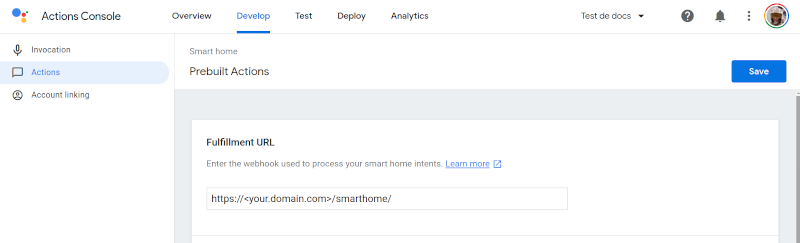
- Go to
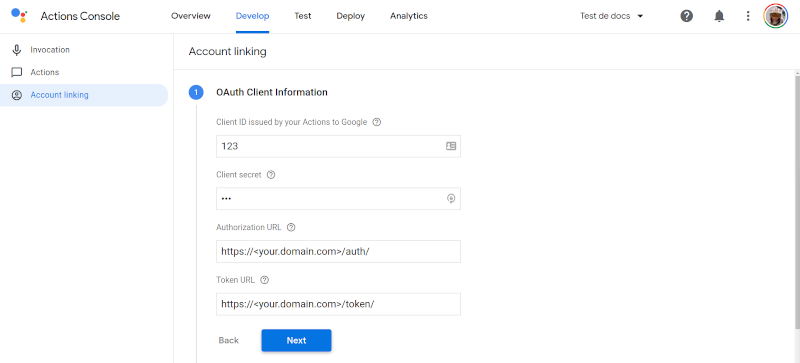
Account Linkingin the left side menu. Enter the client information that the Homeware assistant gives you and clickNext.
- Client ID:
123
- Client Secret:
456 - Authorization URL:
https://<your.domain.com>/auth/ - Token URL:
https://<your.domain.com>/token/
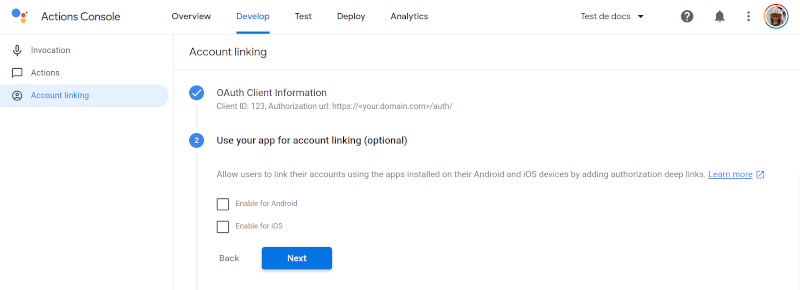
- Skip this step by clicking
Next.
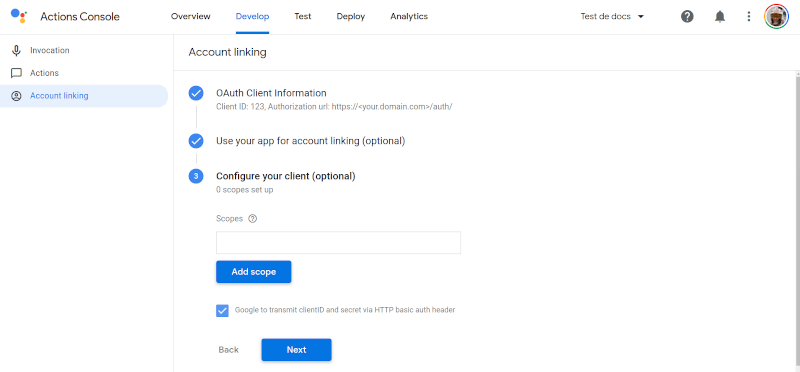
- Enable Google to transmit clientID and secret via HTTP basic auth header, click
Nextand the clickSave.
Link your Account
Use your smartphone to link the project.
Open Google Home App.
Select the
+button at the top left corner.Select
Set a device.Select
Works with Google.Select the options that looks like: [test] Home
Up & running
Now you should see a light called Bulb in our Google Home App.